
Keyboard Shortcuts
Windows 10 have a bunch of keyboard shortcuts that can be very useful to you. So let's discuss all the keyboard shortcuts available in Windows 10. First of all the most common and known shortcut:
Alt + F4
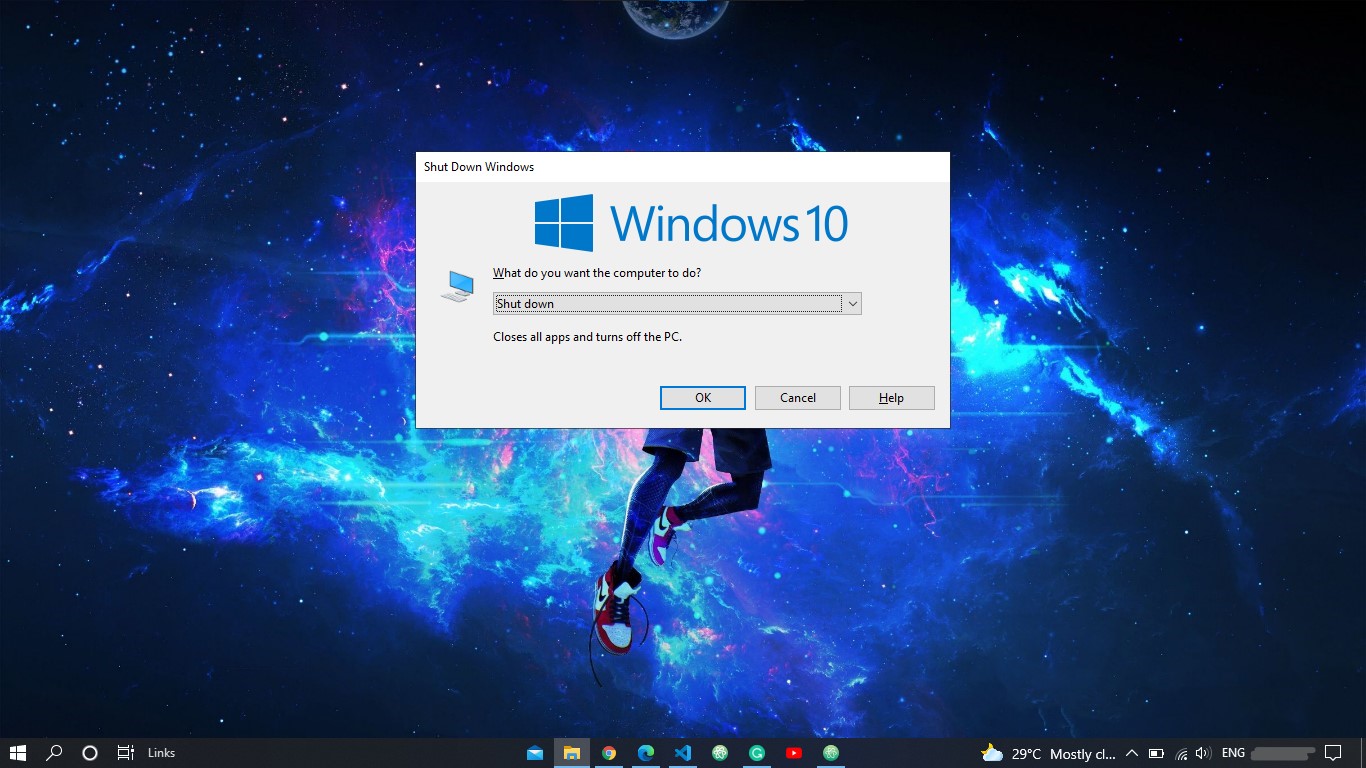
This shortcut is used for closing a window. Just press Alt + F4 to close your current window. You can also use it to shut down your PC. Just click on the desktop and press Alt + F4 and press Enter.
Ctrl + Shift + Esc
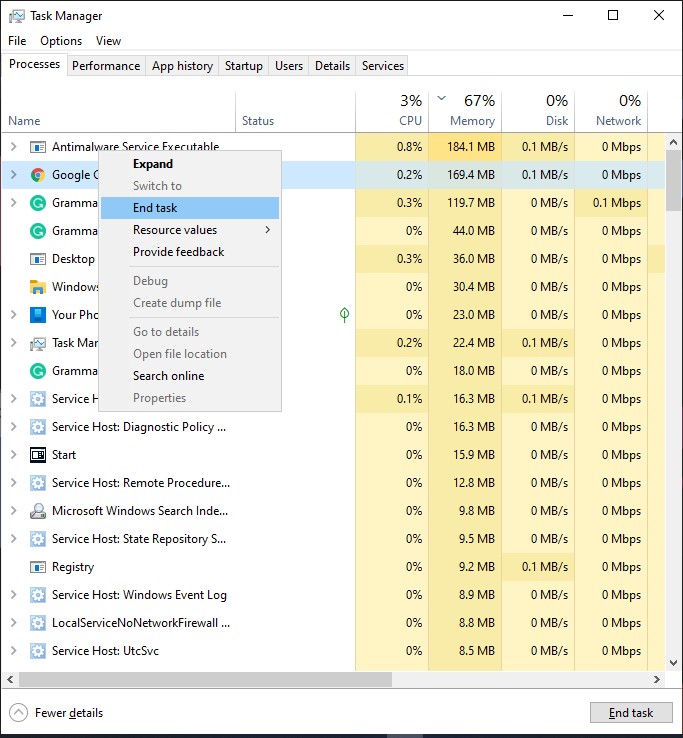
This shortcut will simply open the Task Manager. It is a very useful shortcut. Sometimes your programs can be stoped or not respond, so you can close that program by simply pressing Ctrl + Shift + Esc then select the program which is not responding from the task manager, right-click on the selected program and click on "End Task" and your program will be close.
Alt + Tab
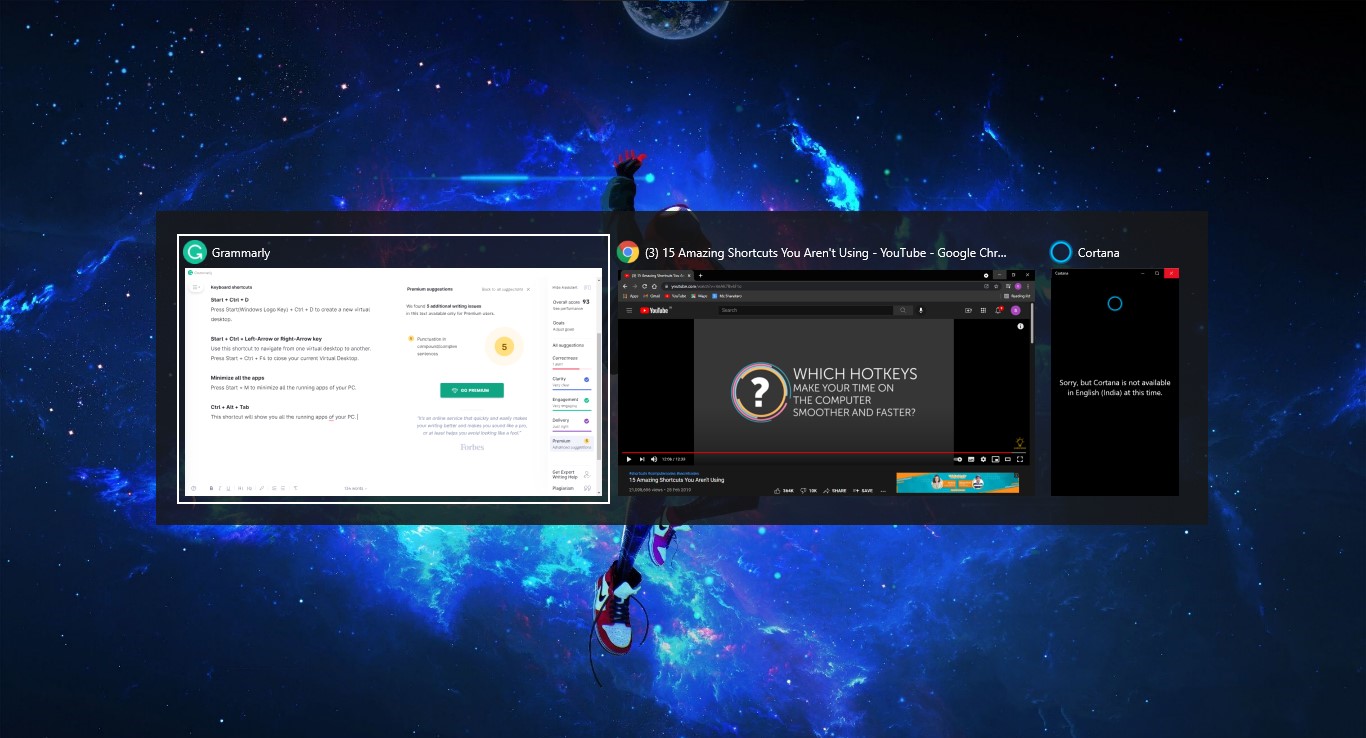
You can switch from one window to another by using this shortcut.
Ctrl + A
Select all files of a folder or your current window by using this shortcut.
Copy, Cut, and Paste
To copy a file press Ctrl + C. To cut a file press Ctrl + X and to paste a file press Ctrl + V. To redo a task press Ctrl + Z.
Ctrl + Shift + N
Use this shortcut to create a new folder.
Start + Ctrl + D
Press Start(Windows Logo Key) + Ctrl + D to create a new virtual desktop.
Start + Ctrl + Left-Arrow or Right-Arrow key
Use this shortcut to navigate from one virtual desktop to another. Press Start + Ctrl + F4 to close your current Virtual Desktop.
Minimize all the apps
Press Start + M to minimize all the running apps on your PC.
Ctrl + Alt + Tab
This shortcut will show you all the running apps on your PC.
Open Magnifier
Press the Start + '+' button to open the Magnifier app, and again press the Start + "+" button to zoom in and the Start + "-" button to zoom out.
Open System Settings
Press Start + I to open the system settings menu.
Start + C
Use this shortcut to talk with Cortana.
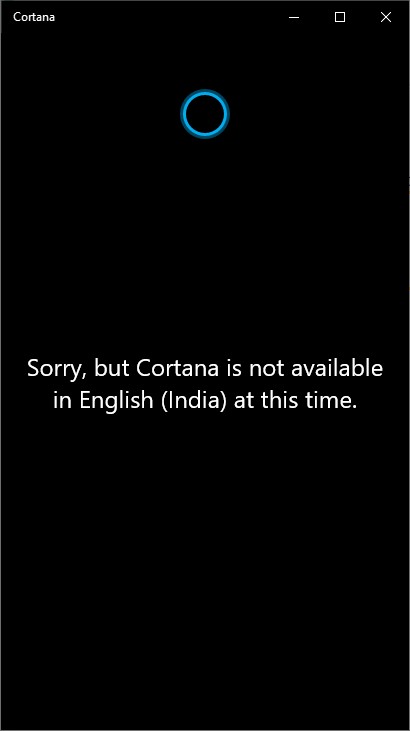
Fig: 2.18
Open the taskbar's "Secret Menu"
Press Start + X to launch the taskbar's secret menu.

Fig: 2.19
Start + V
Use this shortcut to launch the "Clipboard"
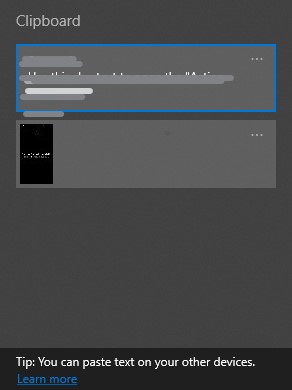
Fig: 2.20
Start + A
Use this shortcut to open the "Action Centre"
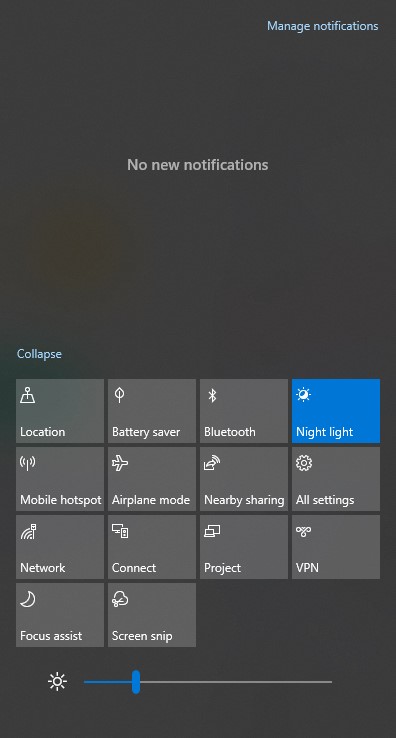
Fig: 2.21
Search your computer
Press Start + Q to open the search bar.
Launch the whiteboard app
Press Start + W, then a small menu will pop up on the right corner of the screen. There will be two options "Whiteboard" and "Fullscreen snip" choose whiteboard to launch it.

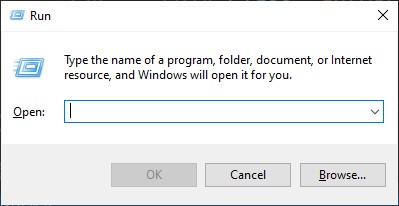
Open the Run prompt
Press Start + R to open the run prompt
Open the display settings
Press Start + U to open the display settings
Start + p
Use this shortcut to open the 'Project' menu.
Minimize and Maximize your current window.
Press Start + D to minimize or maximize your current window.
Launch the Feedback Hub
Press Start + F to launch the Feedback Hub.
Take a sneak of your desktop
Just press Start + 'comma' to take a sneak of your desktop.
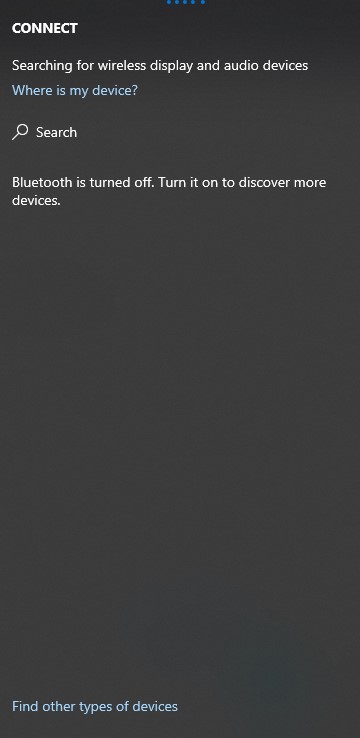
Start + K
Use this shortcut to open the 'Connect' menu to connect your wireless display and audio devices.
Lock your computer
Press Start + L to lock your computer