Make your computer 200% faster
Windows is one of the most commonly used Operating Systems(OS) and is designed to provide a common, "universal" user interface for various systems. But when your install Windows 10 OS on a low-end PC(like me) it will be difficult to use windows 10. Like when you first buy a computer and install Windows 10, it will run perfectly fine but after a few days/weeks you will notice that the PC is slowing down and you will even struggle to move your mouse pointer. This is because your OS is set to max. So let us adjust some settings of your OS and make it 200% faster.
Disable Startup programs
Startup programs are those which run automatically when you turn on the PC. Some startup app or programs are not required to run in startup but they are enabled by default which causes slow boot up on your computer. Disabling them results in fast boot up.
To disable startup programs, open the "Task Manager".
Click on "Startup".
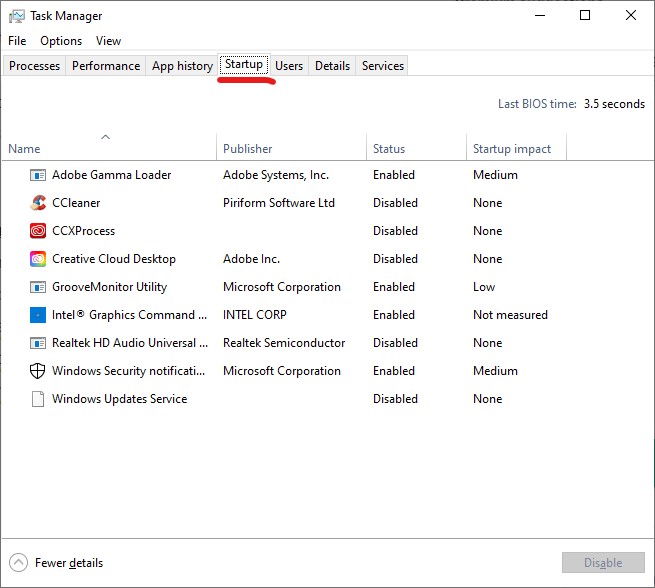
And disable all the startup programs except "Adobe Gamma Loader", "GrooveMonitor Utility" and "Windows Security notification"
.jpg)
Reduce your graphics and effects
Reducing graphics and effects may make your PC unattractive but it will make your PC fast and responsive.
To reduce your Windows 10 graphics, click on the "About" option in your "System" section of settings or press Start + Pause/Break.
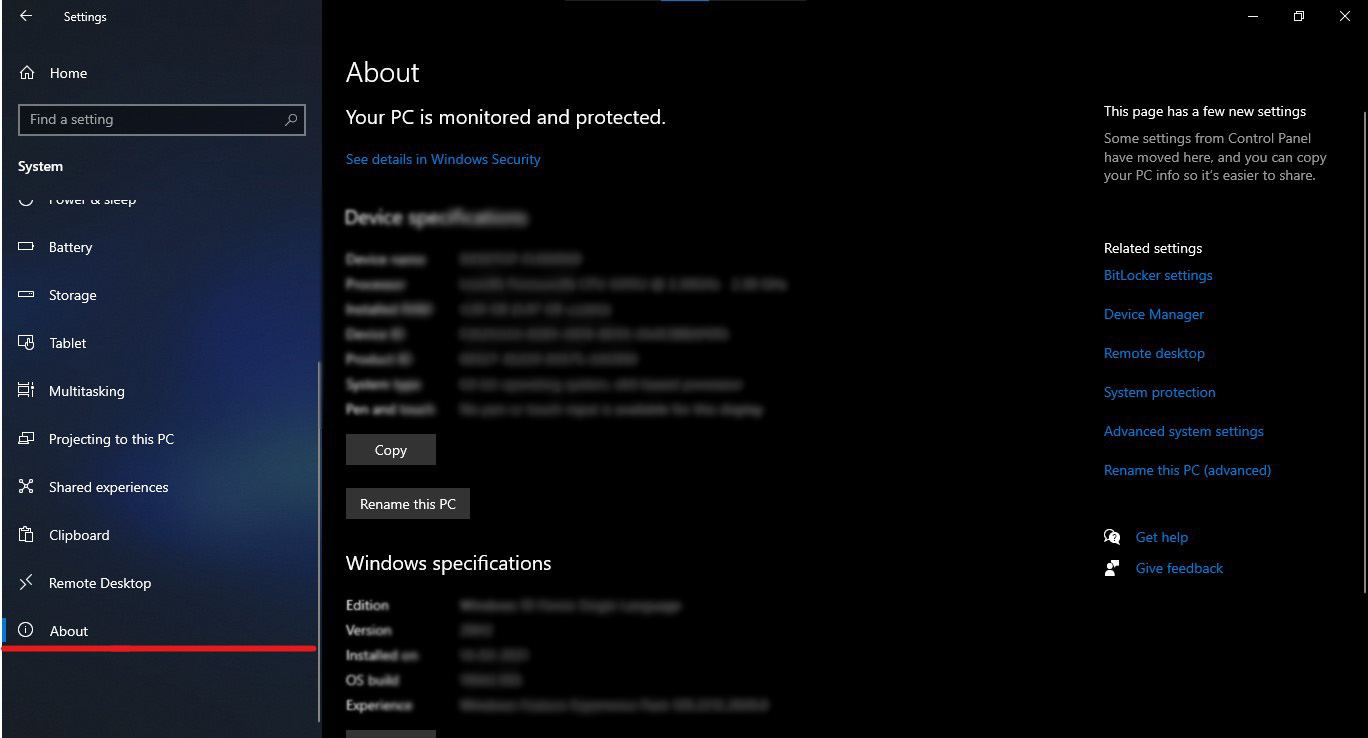
Now, click on "Advanced System setting". And "System Properties" dialog box will pop up.
.jpg)
Click on the Settings option of the Performance section. And uncheck all the unnecessary effects as shown in Fig: 2.4.
.jpg)
Fig: 2.4
Delete Temporary Files
Deleting temporary files free ups the C drive and makes your computer smooth. You can delete temporary files on Windows without using any third-party software.
To delete unwanted files, press Start + R. On the Run prompt type "temp" and hit enter.
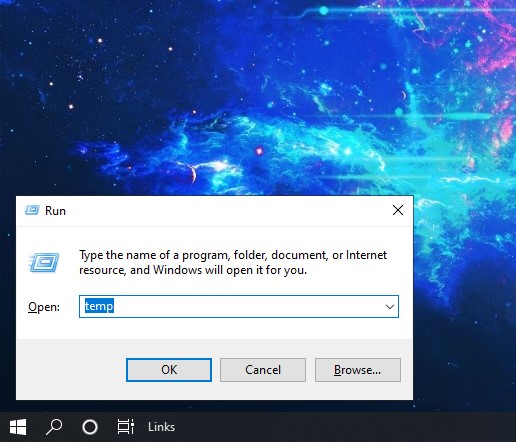
Select all the files by pressing Ctrl + A and press Delete.
Skip the files which are admin protected. Close the window.
.jpg)
Now, again type "%temp%" on your Run prompt and hit enter. Select all the files, Delete all, and skip the files which are admin protected.
Again, type "prefetch" on your Run prompt, hit enter, and delete all the files.
I know this was a dull process, but you can enable the auto-delete temporary files option. But it's always better to delete temporary files manually.
Go to the Settings Menu, click on the System option, click on storage and enable the option shown in Fig: 2.5.
.jpg)
Fig: 2.5
Incapacitating unnecessary settings
Sorry for the heading but I could not find a perfect title for this setting. Now, what you have to do is go to the settings menu, click on the Privacy option, then click on "Camera" and turn off the settings as I did in Fig: 2.6.
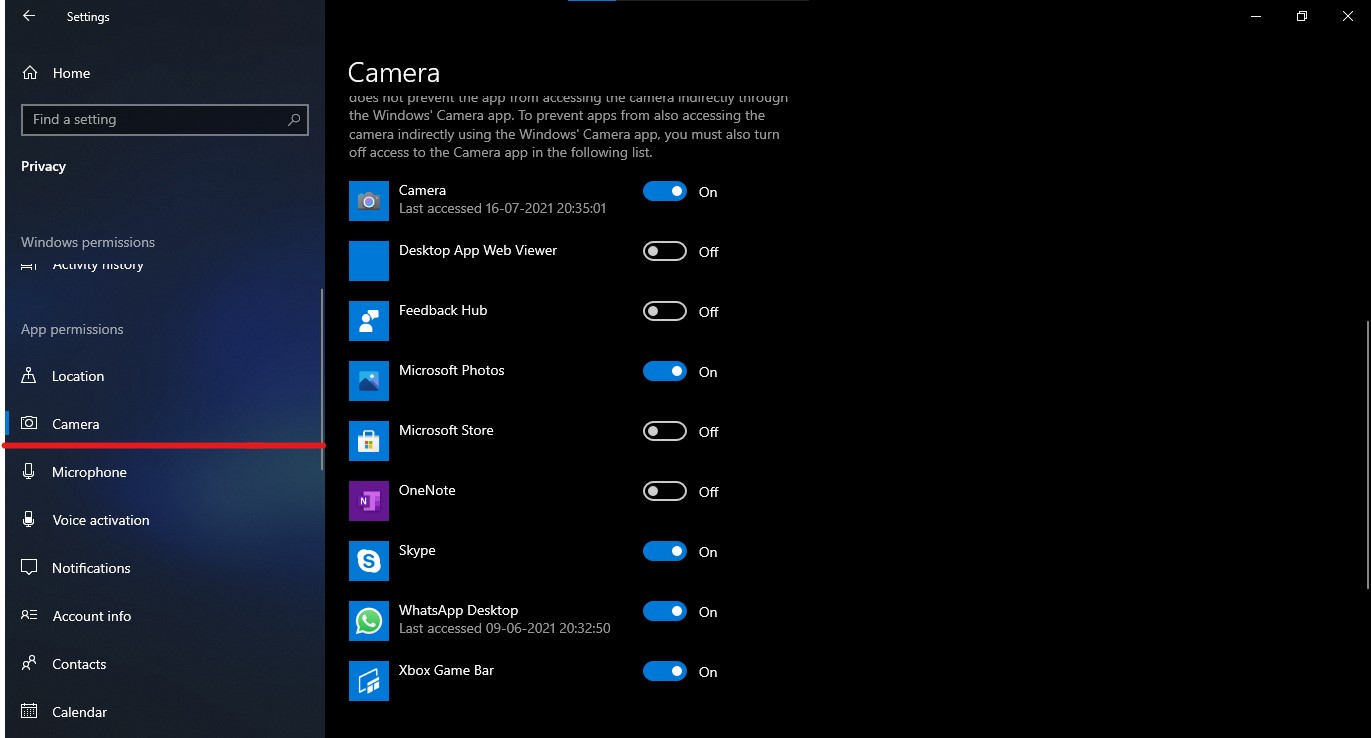
Fig: 2.6
Now, go to the "Microphone" option and turn off the settings as I did in Fig: 2.7.
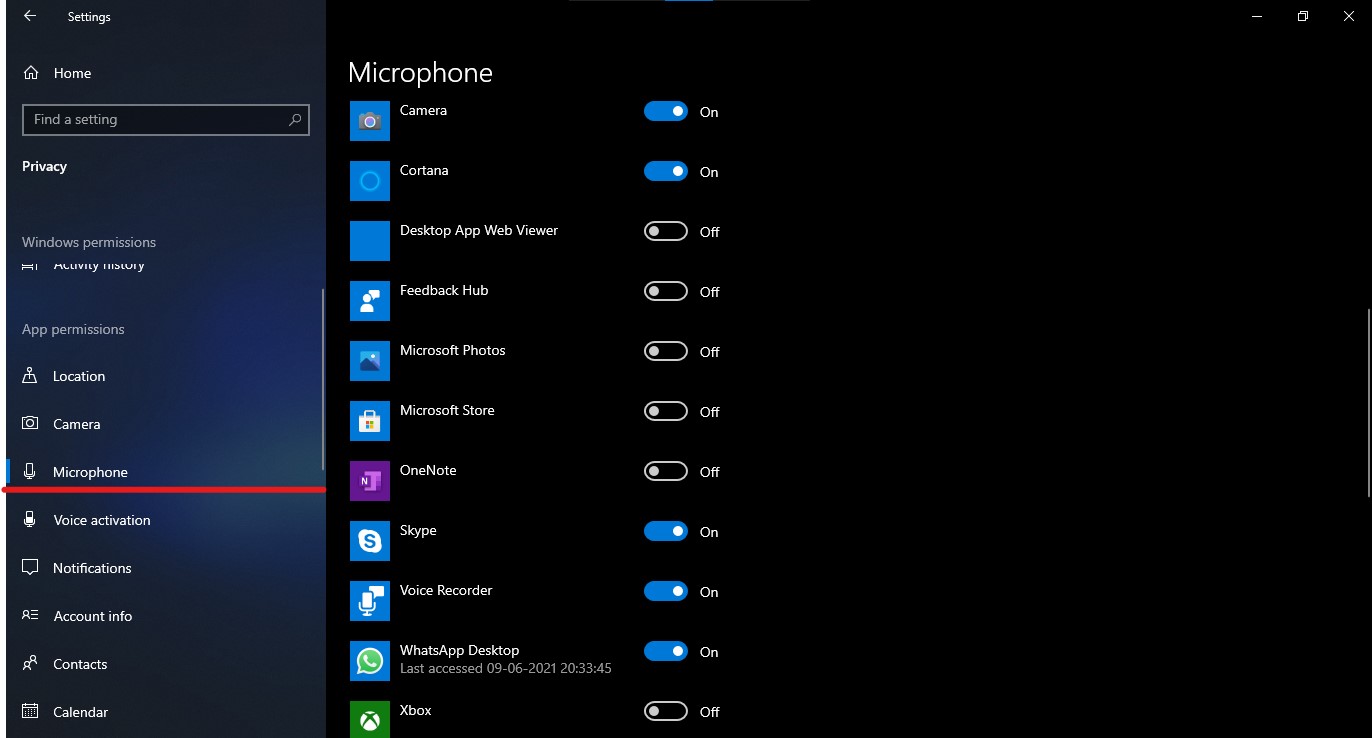
Fig: 2.7
Uninstalling unused apps and programs
Windows 10 comes with many pre-installed apps which are not very useful but the apps use a lot of space and uninstalling them will free up the C drive and will make your computer fast.
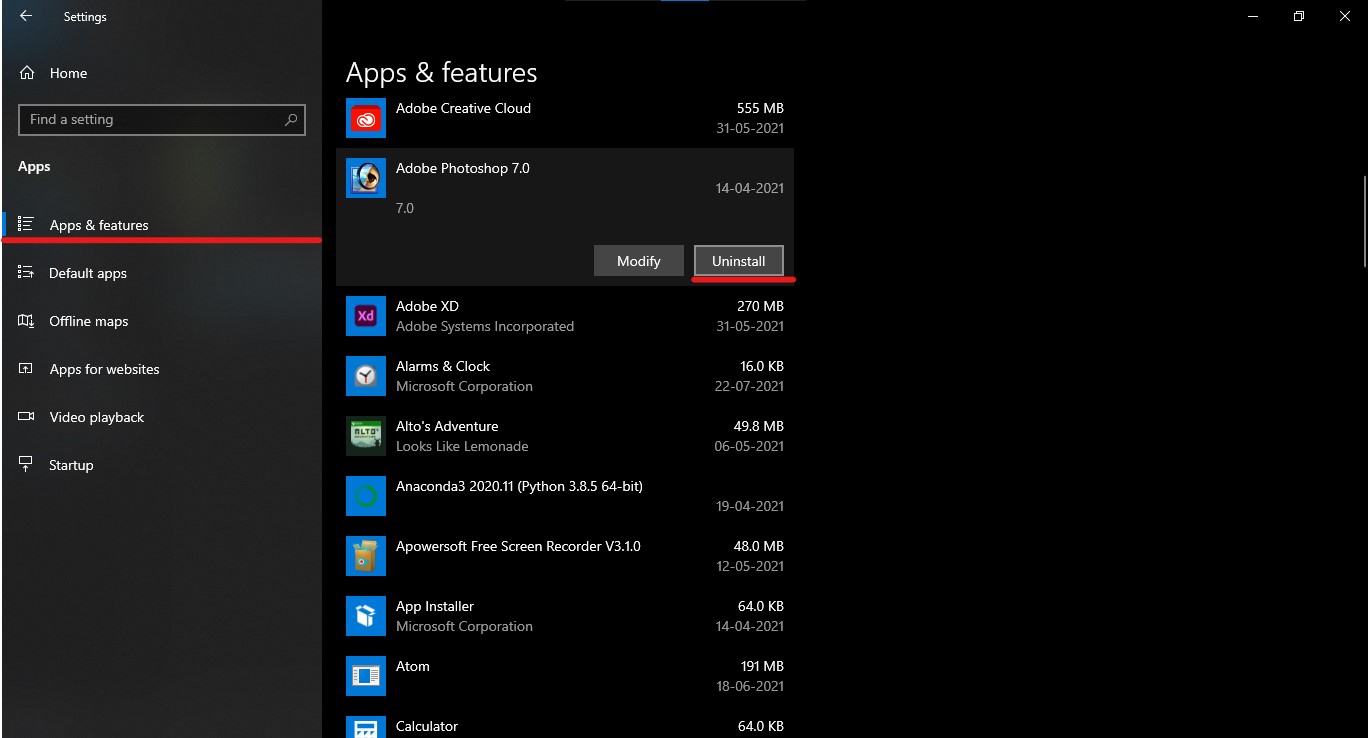
Go to the settings menu, click on the "Apps" option and select which app you want to uninstall, and just click on "Uninstall". Uninstall one app at a time.
Repairing corrupted files and programs
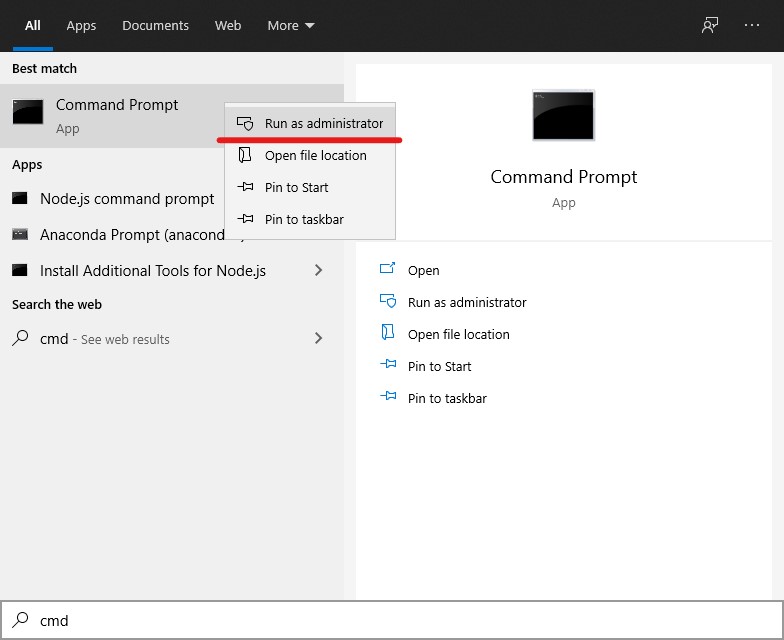
System file checker is a build-in function of Windows 10 and it is used to scan corrupted files or program and it automatically repairs it. To run the system file checker click on the search bar and type "cmd".
Run it as Administrator.
And type "sfc /scannow" and hit enter.
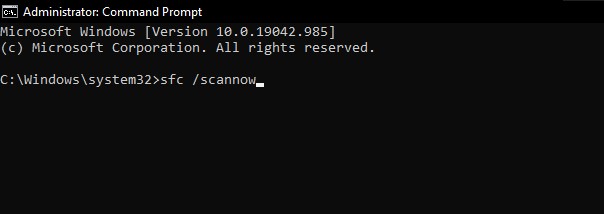
It might take more than 1 hour to scan but you can do your other stuff while the scan is running.
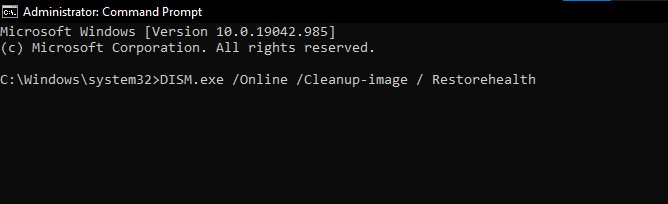
There is one more command line that does the same thing, search for corrupted files and restore them with windows update. Just type "DISM.exe /Online /Cleanup-image / Restorehealth".
System Maintenance
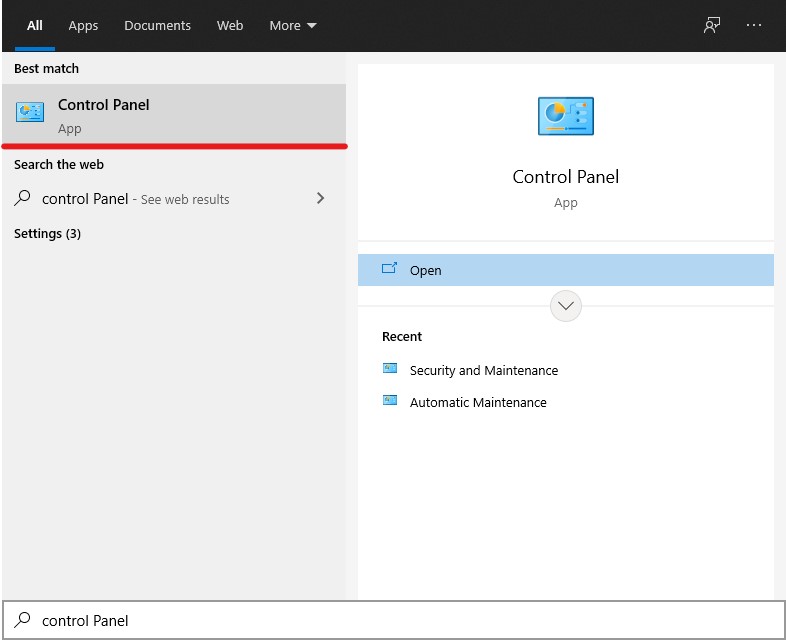
Click on the search bar type "Control Panel" and click on the Control Panel.
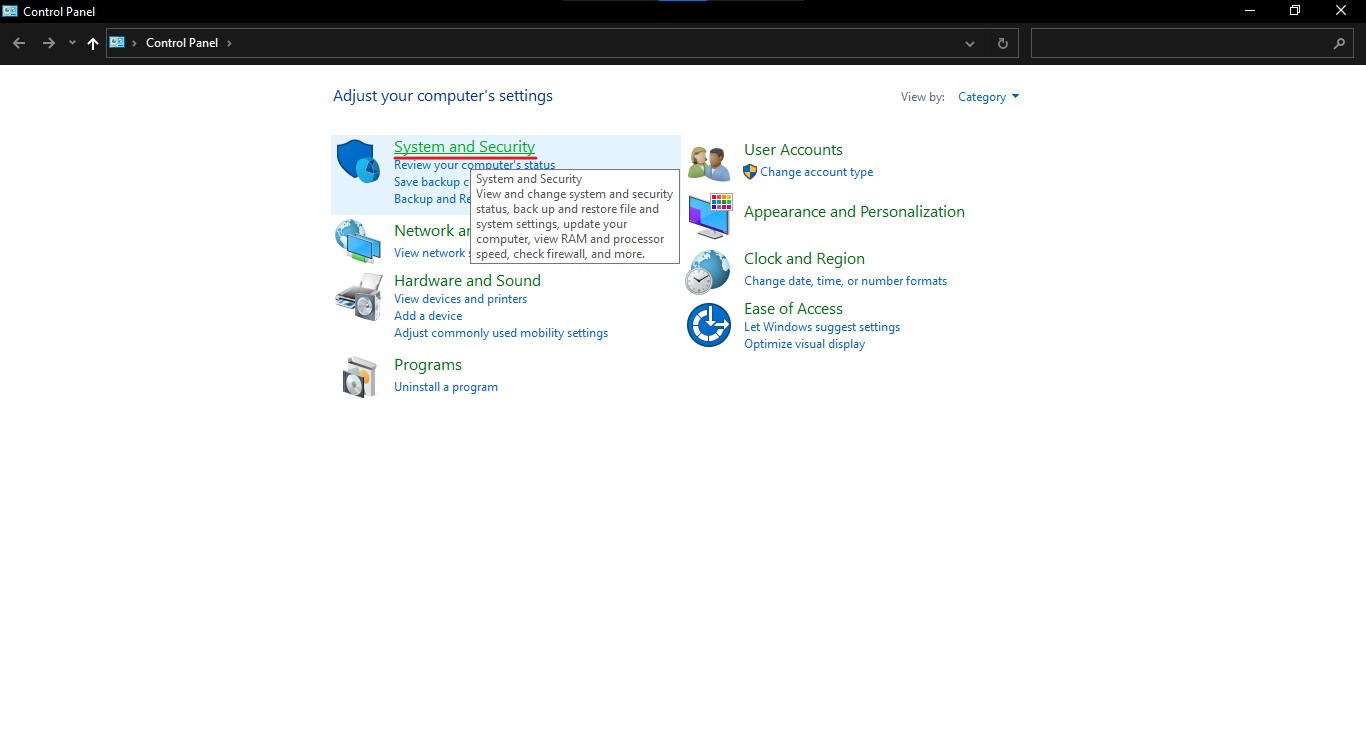
Click on "System and Security".
Click on "Security and Maintainance".
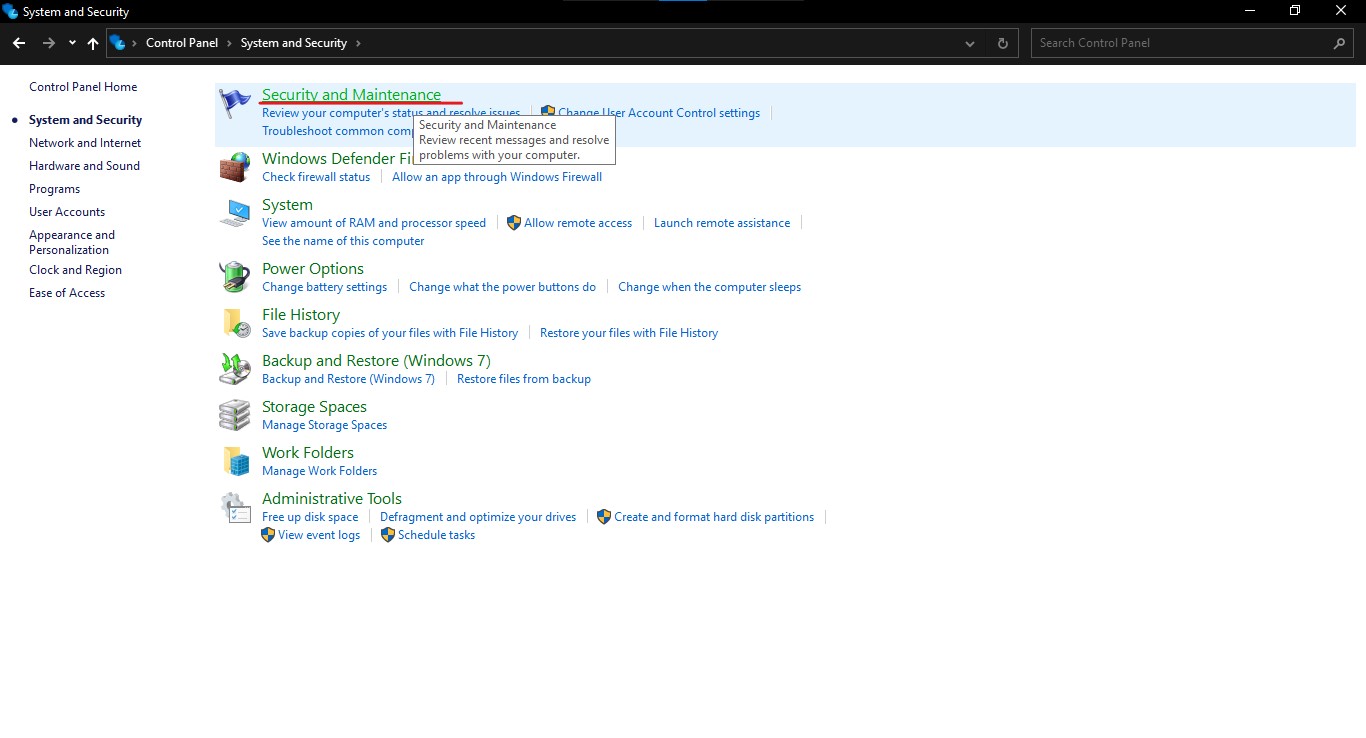
Click on "Maintenance".
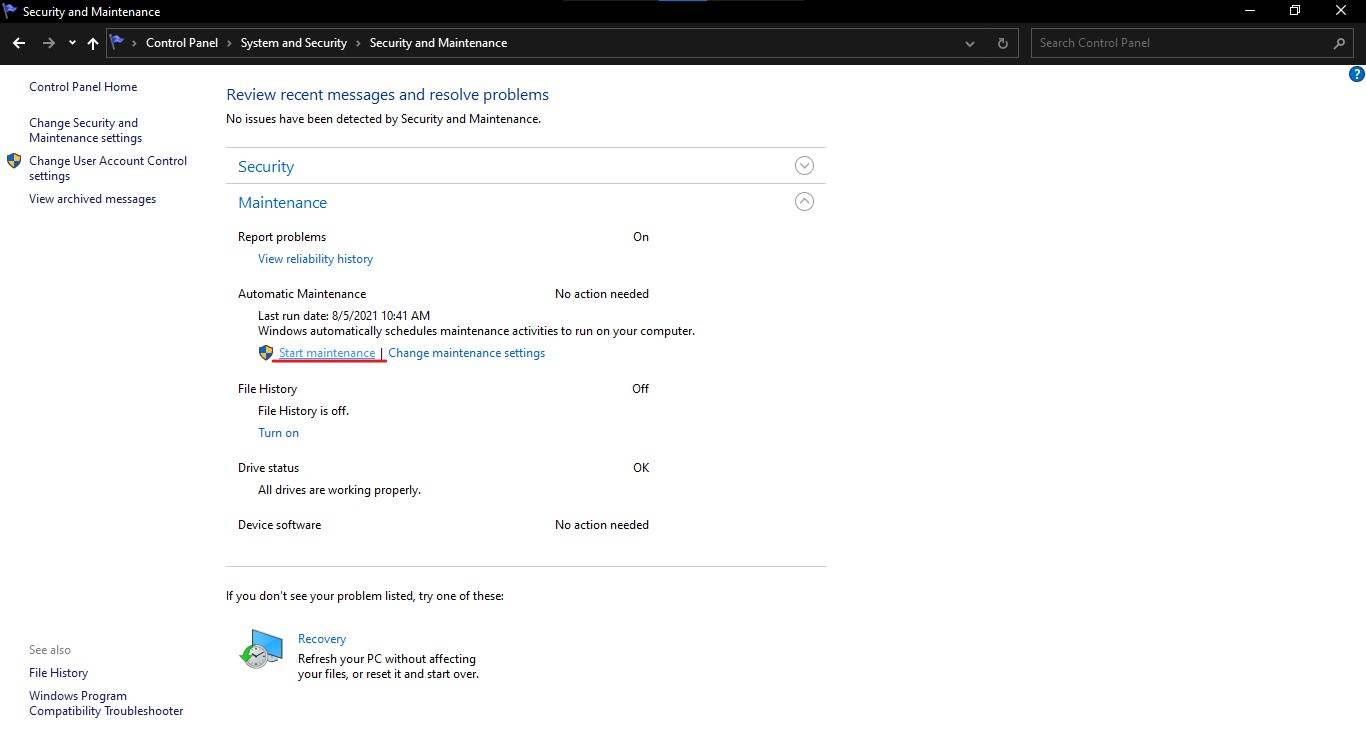
Then, click on "Start Maintainance"
This will scan your drives and it will check your drives whether the drives need to be defragmented or not and it will search for any malicious programs or files. I recommend doing this Maintainance every month to prevent malware and viruses.
Disable Windows tips and tricks notifications
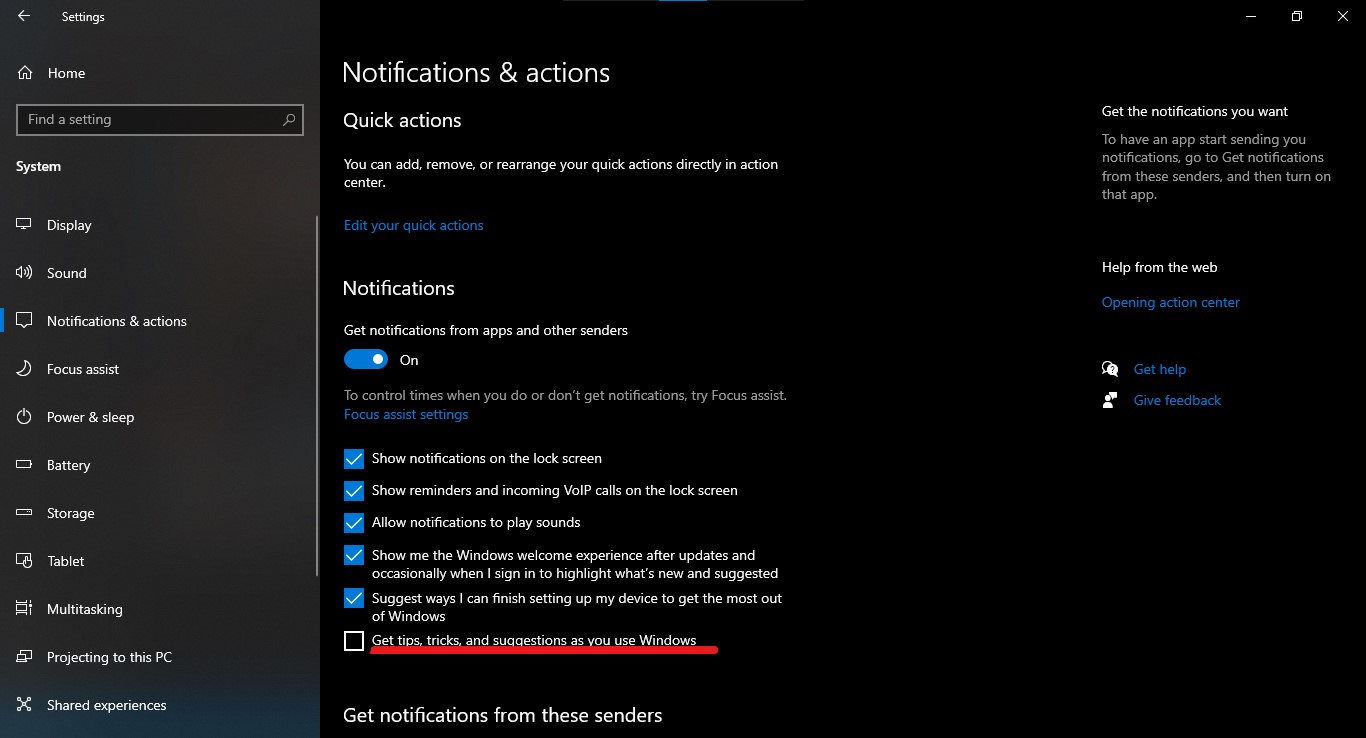
Windows keeps tracking your work to suggest tips and other notifications which is not very useful, so disabling them can make a little bit of difference.
Just go to the Settings menu and click on the System option.
Then click on Notification and action.
Now disable the "Get tips, tricks, and suggestions as you use Windows" option.
Reset Windows 10
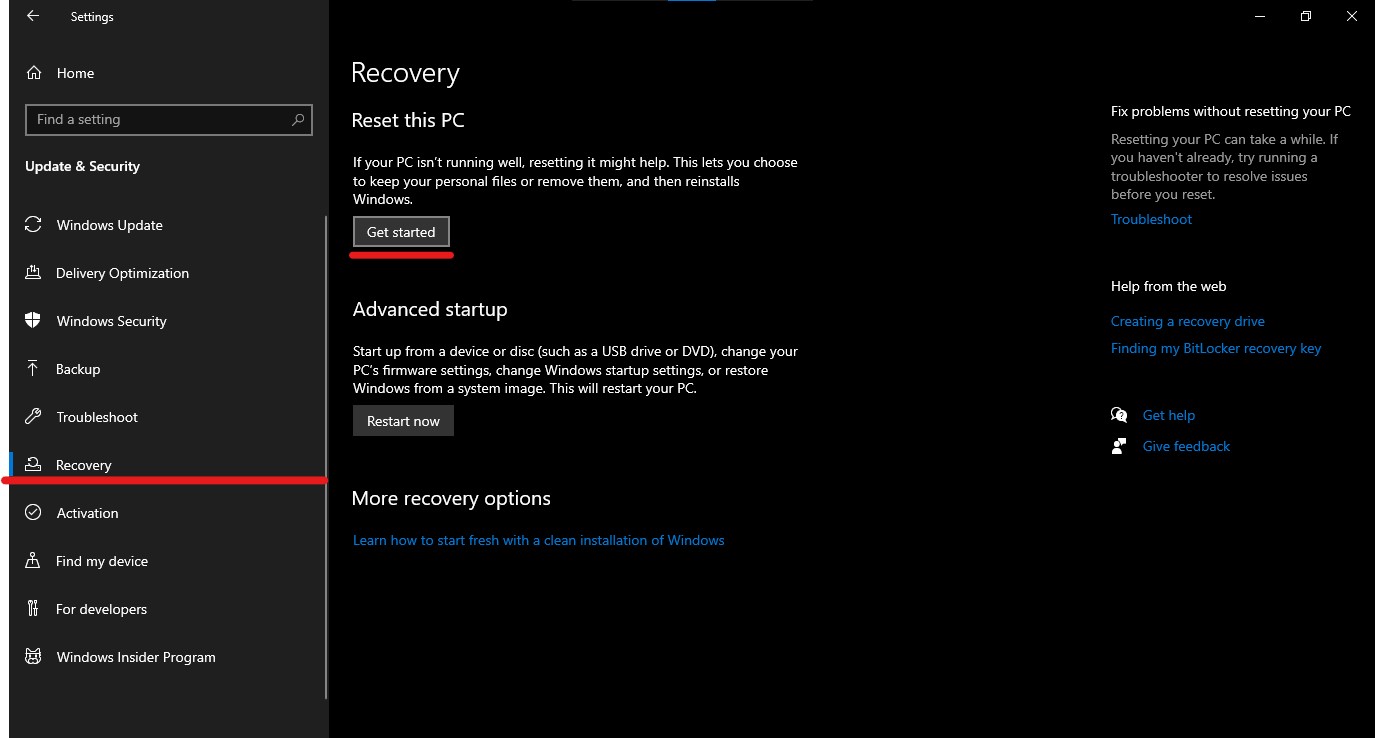
If any of the above steps don't work for you then the last option will be resetting your PC. It will be like reinstalling your PC. But before you reset your PC you have to keep backups for your files and programs. Windows will erase all the data, uninstall all the programs that you have installed make. There is an option to keep your files but it's always better to keep backups. Although I don't recommend you to perform this step. This step is only for those who have used their computers for more than two or three years and don't want to install a new Windows.
Go to the Settings window.
Click on the Update & Security option.
Click on Recovery.
Then click on "Get Started".