
Customize your taskbar and desktop
Many of you may have noticed my taskbar. I have customized it without any third-party app and removed the shortcut for a clean look because I love a clean desktop. So If you wanna make your taskbar look cleaner and more professional just follow me.
Step 1: Resize your taskbar.
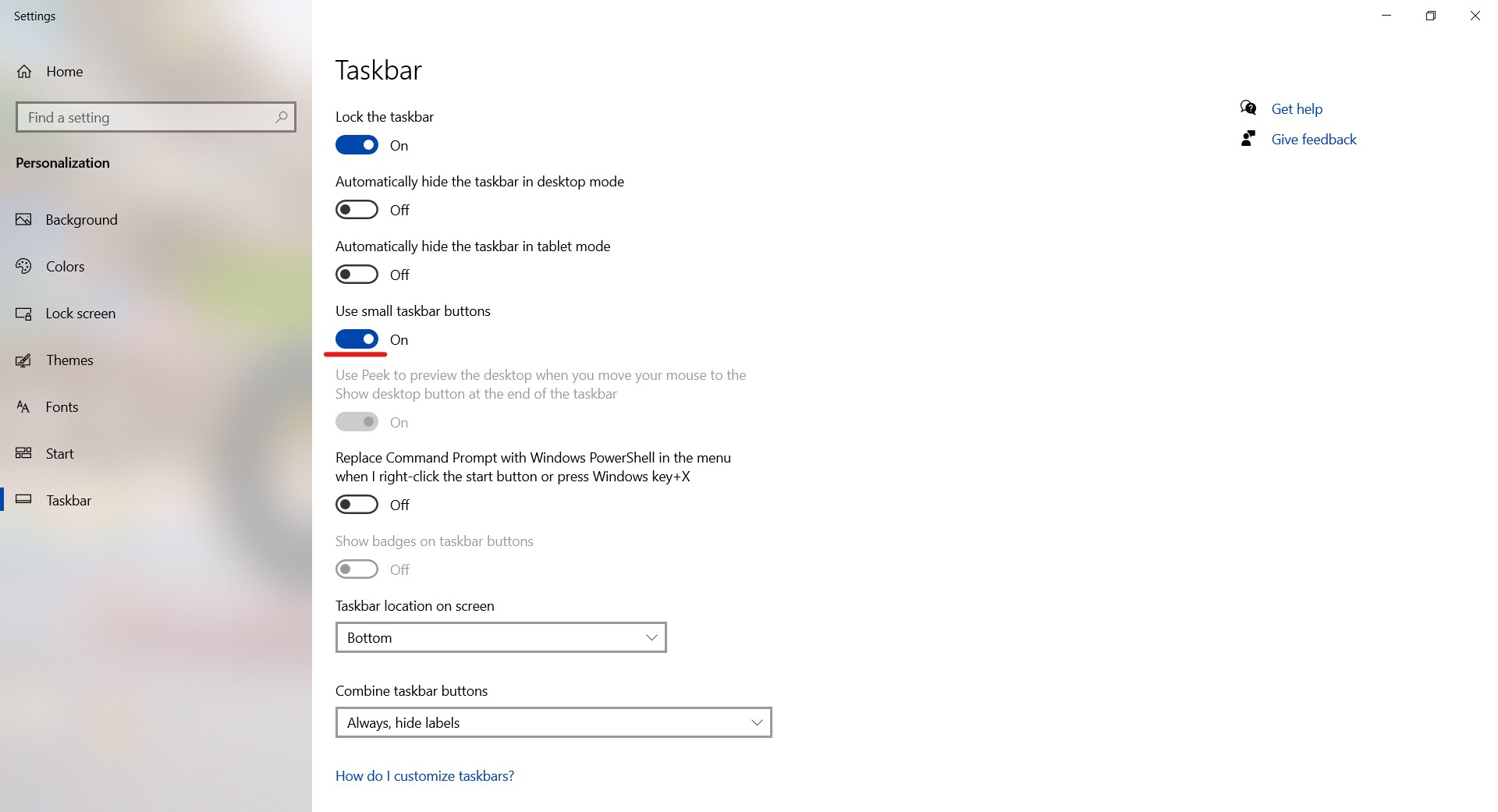
Right-click on the taskbar and click on "Taskbar Settings". Enable the "Use small taskbar buttons" option.
Step2: Center your icons.
Right-click on the taskbar.
In the "Toolbars" click on the "Links" option.
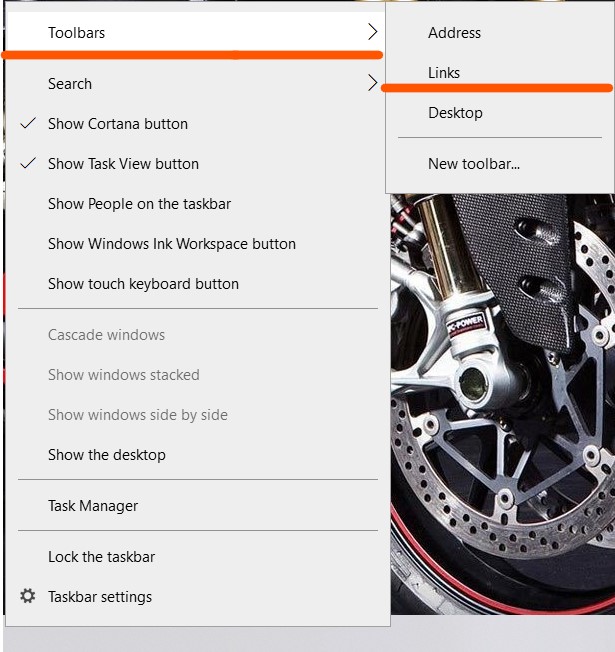
Now hold the right Link's bars and drag them to the left.

Now the taskbar shortcuts(icons) will be shifted to the right.
Hold the right bars and drag them to the center.


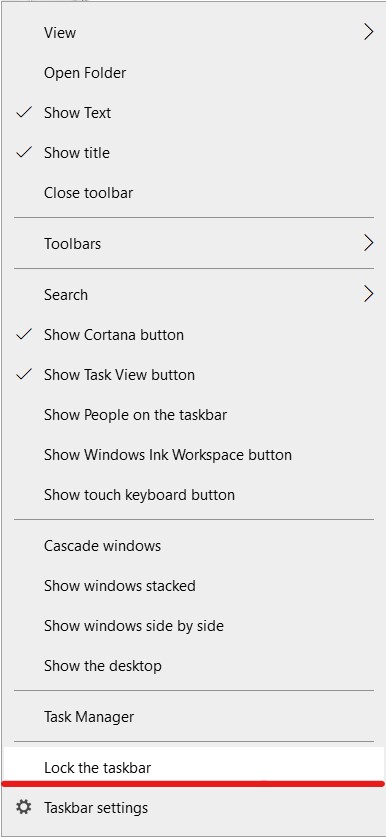
Lock the taskbar.
Step3: Hide the shortcuts.
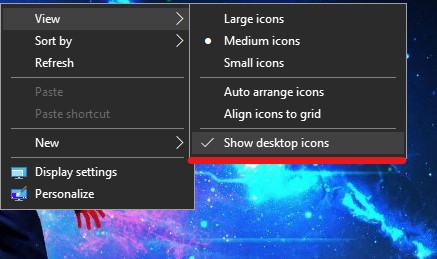
I don't like the shortcuts on my desktop. So if you are like me then you can hide the shortcuts, just right-click on the desktop, in the View section uncheck the "Show desktop icons" option.
Step4: Change the color of the taskbar
If you want to change the color of the taskbar, go to setting and click on the "Personalization" option and click on the "Colors" option. Select a color from "Windows colors" and check the box as shown in Fig: 2.8.
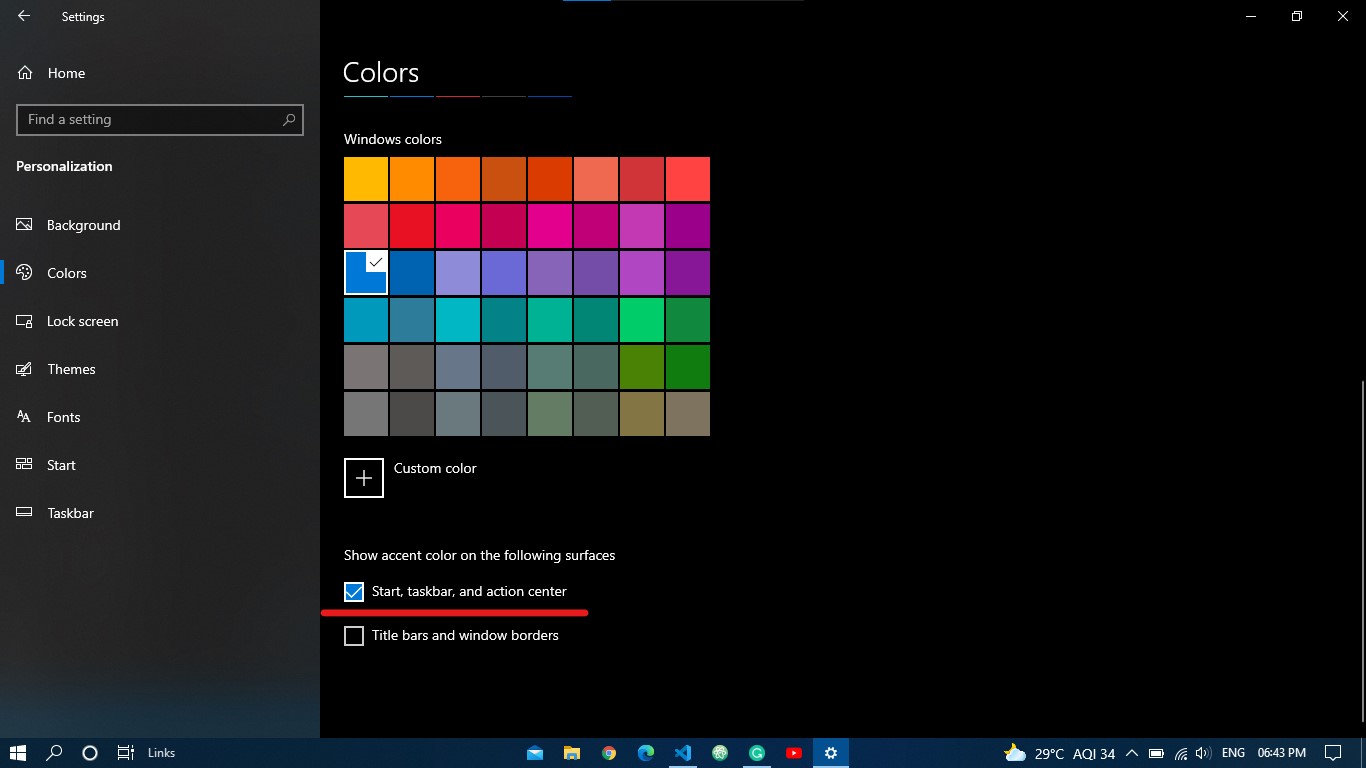
Fig: 2.8
Enable Dark Mode
The dark mode is best for your eyes and it gives your computer an aesthetic look. To enable the dark mode, just go to Setting >>Personilization >>Colors.
Now, click on "Choose your color" and select "Dark" (Fig: 2.9)
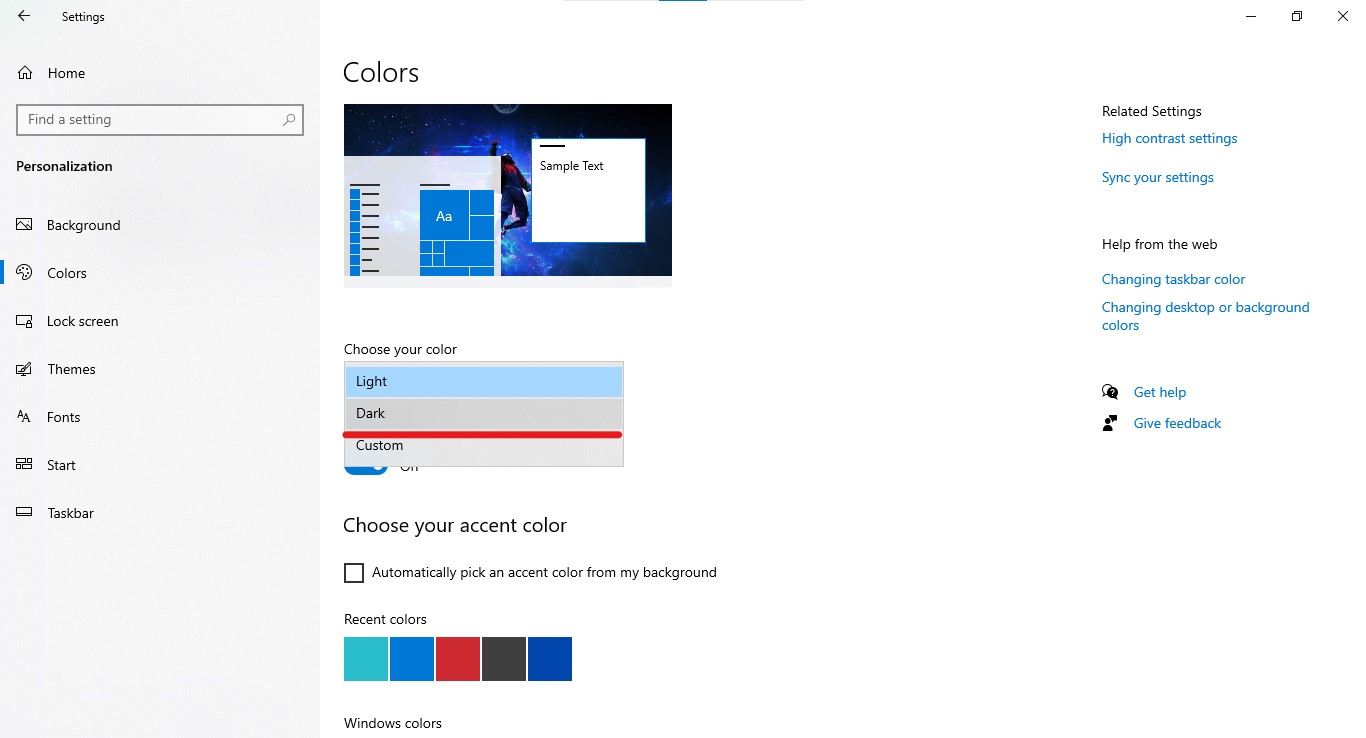
Fig: 2.9
Trick 1
When you click on the File Explorer option on the taskbar. It opens the Quick Access window but you can change it to "This PC" which is used very often. To change it, click on the View tab.
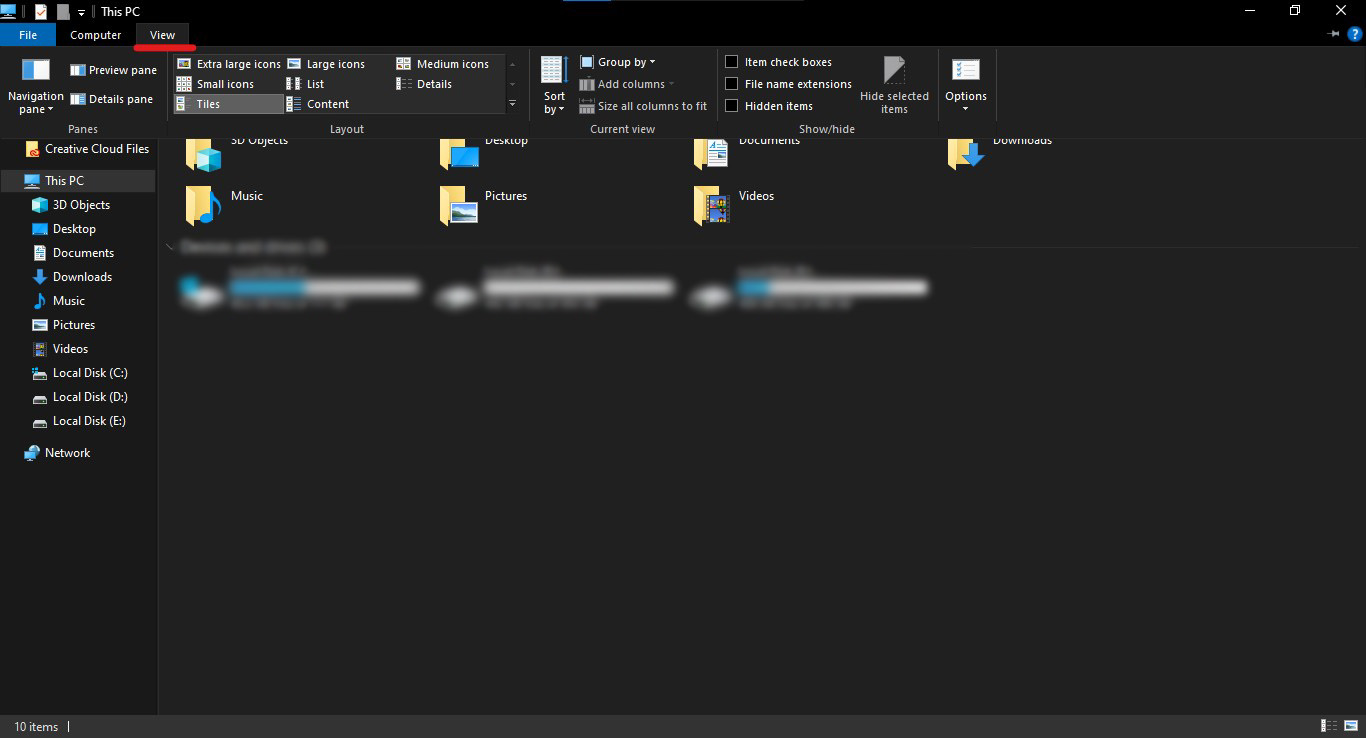
Click on "Options".

Now, change the setting to "This PC" as shown in Fig 2.10. And click on apply.
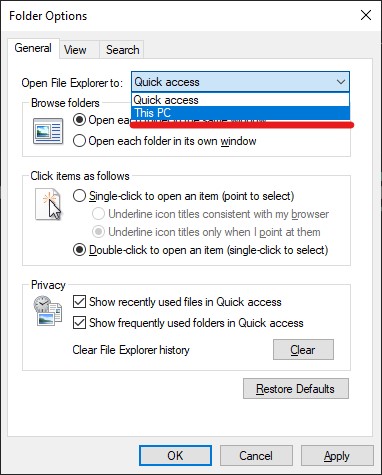
Fig: 2.10